Adding AI to one WordPress site is a settings job. Adding it to twenty client sites is an operations job. Somebody has to own each API key, somebody pays each provider bill, somebody decides what visitors can trigger, and somebody needs to know what happens when a contractor who had admin access moves on.
This is a playbook for agencies and freelancers running WordPress AI on client sites with Generatify, the DaftPlug AI plugin. It covers how to split features by cost, where keys live and who can read them, how to cap spending, how to keep the copilot safe on production, and what to check before you hand a site over. Plugin behavior comes from the Generatify documentation and the 1.5.0 changelog on WordPress.org. Agency practice that is not plugin behavior is labeled as general advice.
Start with one question per client: do they need a key at all?
Generatify splits cleanly by where the work happens. The free features never call a paid AI provider, so they need no key and cost nothing per use:
| Free, no key | Where the work happens |
|---|---|
| AI toxicity checker | A model in the commenter’s browser |
| AI alt images | An image recognition model in the browser |
| AI related posts | Content and taxonomy analysis on the client’s server |
| AI content summary | A prepared prompt that opens in ChatGPT |
| AI smart compose | A built-in phrase list in the browser |
| AI page agent | The visitor’s browser |
| Helpdesk agent, contact mode | The client’s server sends the email |
| Browser AI tools (WebMCP) | Read-only REST routes on the site |
The features that call a provider are Pro and need a key: the copilot on Generatify > Chatbot, AI content generation, AI meta descriptions, and the helpdesk conversation mode with its knowledge pages, popular topics and custom instructions.
That gives you a natural tiering for your service offer (general advice). A brochure client who will never open the copilot can run the free set with no provider account at all. A client who wants drafted posts or a helpdesk that answers needs a key, a billing owner and a spending limit before you switch anything on.
Rule 1: one key per site, in an account the client can see
The connectors docs are explicit: give each site its own key rather than reusing one, so a compromised site can be cut off without disturbing the others.
For an agency that rules out the tempting shortcut of pasting your own agency key into every client install. Common practice (general advice) is to create the provider account in the client’s name, or in a project the client can audit, so the bill and the usage history belong to the business that benefits.
Two details trip people up:
- A consumer chat subscription is not an API key. The FAQ says a ChatGPT Plus subscription does not include API access. Keys come from each provider’s developer console: platform.openai.com for ChatGPT, console.anthropic.com for Claude, aistudio.google.com for Gemini, and the Moonshot AI platform console for Kimi.
- The connector toggle matters as much as the key. On Settings > Connectors, each provider is a toggle plus a key field. If the model selector on the Chatbot screen reads No AI Model Available, either no connector is enabled or no key is saved.
Generatify 1.5.0 added a Test connection button for each provider, which makes a quick check part of every setup.
Rule 2: set a ceiling before anything visitor-facing goes live
The single most important sentence in the Generatify docs for agencies is this one: DaftPlug does not bill you for AI usage and cannot cap it. A license unlocks the connectors. The provider bills for what is sent. The spending limit in the provider’s dashboard is the only hard ceiling that exists.
The 1.5.0 changelog adds that each AI provider now has its own budget setting in Generatify. The docs do not yet describe how that budget behaves, so treat the provider dashboard limit as the real ceiling and the in-plugin budget as an extra layer.
Then look at who triggers each cost. From the provider guide:
| Feature | Cost driver | Who triggers it |
|---|---|---|
| Meta descriptions | One small request per post | Your team |
| Tag and category suggestions | One small request | Your team |
| Copilot conversations | Grows with conversation length | Your team |
| Content generation | One large request per article | Your team |
| Image generation | The most expensive item, per image | Your team |
| Helpdesk conversation mode | One request per visitor message | The client’s visitors |
Everything except the last row is bounded by how often your team uses it. The helpdesk row is bounded by the client’s traffic. On a busy store, set a limit the client is comfortable with before switching conversation mode on.
Two habits keep the team rows cheap. Start a new chat in the copilot when you change subject, because every message resends the whole conversation. And generate featured images deliberately, since the docs call images the most expensive thing in the plugin by a wide margin. If you want to see what each site actually spends, our guide to tracking WordPress AI usage and costs walks through it.
Rule 3: launch the helpdesk in contact mode
The helpdesk widget itself is free: appearance, home tab, help articles and the contact form. Conversation mode is the part that thinks, and the part that costs.
The quickstart recommends starting every site in Contact mode. It works immediately, and the messages it collects tell you what conversation mode should be trained to answer. For an agency that doubles as discovery work you can bill for (general advice).
Before launch, check one default in particular. The helpdesk Contact Email defaults to the WordPress admin email. On many client sites that is still the agency’s address from the build, so form submissions land in your inbox instead of the client’s. Set it to the client’s support address.
When you do move to Conversation mode, the 1.5.0 changelog describes protections worth knowing:
- Helpdesk messages are limited for everyone except administrators, and logged-in members get a higher allowance.
- The visitor address is read from Cloudflare or another proxy only when you have named that proxy, so configure that on sites behind a proxy.
- The public helpdesk only looks up published content. Tools that change the site are available only in the dashboard chatbot, and an administrator using the public helpdesk still only gets the lookup tools.
- When a reply cannot be completed, visitors see a short message while details go to the server log, and administrators get a notice pointing at the API key, the model or the usage limit.
Pro adds up to three Knowledge pages whose full content the agent can read, up to three Popular Topics on the home tab, and Custom Instructions for language, tone and rules. Point Knowledge at the pages that answer the most common questions, such as shipping, returns and opening hours.
Rule 4: treat the key as a shared credential
Keys are saved in the generatify_settings option, in the client’s database, alongside every other setting. The docs spell out what that means: anyone with administrator access to the site, or with database access, can read the key. Treat it as a shared credential.
The same section gives the rotation rule: rotate keys when an administrator leaves. For agencies that covers three moments (general advice):
- A team member who had admin access leaves your agency.
- A freelancer or other agency had admin access during a project.
- You hand the site over, or the client ends the retainer.
Because keys belong to each site, rotating one client’s key never touches another’s. That is the payoff of Rule 1.
Rule 5: keep the copilot safe on production
The copilot is where an agency gets the most value and where a mistake costs the most. The docs describe the safeguards in detail.
Approval is enforced in code. Every write returns a preview and waits for confirmation. The FAQ notes this is enforced in the plugin rather than requested in the prompt, so an assistant that decides to skip asking still cannot write. Ask it to list pending changes at any point.
Developer abilities have hard limits. The copilot can read and write files, activate and deactivate plugins, and read and set options. Those abilities require manage_options plus WordPress’s file-editing capabilities, checked when the preview is built and again when it is applied. Paths must land inside wp-content, only an allowlist of source file extensions is accepted, and .htaccess is deliberately excluded. Every write or delete copies the previous file to uploads/generatify-backups first.
Some options are out of reach. A fixed list stays protected, including siteurl, home, active_plugins, admin_email, users_can_register and default_role.
Site policy wins. DISALLOW_FILE_MODS and DISALLOW_FILE_EDIT in wp-config.php are honored. If your agency locks file editing on production, the copilot stays locked too, and code changes happen on staging, which is where the docs say they belong.
One more detail matters for teams. Copilot conversations are stored in each person’s browser local storage, not in the database. They do not follow you to another machine, other administrators cannot see them, and clearing site data removes them. If a decision made in a copilot chat matters, write it down in your project notes (general advice).
Rule 6: review the visitor-facing defaults at handover
Some features are on the moment Generatify is active, and clients deserve to know what their visitors see:
- The AI page agent is on by default, in the bottom-left corner. Set its Primary Color to the client’s brand, or turn it off.
- Smart compose is on by default.
- The helpdesk agent is off by default, and sits bottom-right when enabled, so the two buttons do not collide. Check for a chat widget or cookie banner in the same corner.
- Browser AI tools are off. On a WooCommerce store they add product search, stock lookups and add-to-cart for simple published products. They cannot reach checkout, coupons or payment, but the docs ask you to read the browser AI tools guide before enabling them on a store.
Licensing across a client roster
Pro is sold as the DaftPlug membership, and the plans differ only in site activations. From the live pricing page: Pro covers 1 site at $37.99 a year, Pro Plus covers 5 sites at $74.99, and Pro Max covers 100 sites at $138.99, all with every Pro plugin and a 14-day money-back guarantee. You can move up a plan and pay only the difference. Compare them on the DaftPlug pricing page.
Two licensing facts help with offboarding. A license moves by deactivating it on the old site and activating it on the new one. And if a license lapses, nothing is deleted, including API keys. Pro features stop, the free ones carry on, and reactivating restores everything.
The client site checklist
| Check | Where |
|---|---|
| Free features chosen, provider features justified | Generatify > Settings |
| Key from the client’s own provider account | Settings > Connectors |
| Connector toggle on, Test connection passed | Settings > Connectors |
| Spending limit set | The provider’s dashboard |
| Helpdesk Contact Email set to the client | Settings > Agents |
| Contact mode first, conversation later | Settings > Agents |
| File editing locked on production | wp-config.php |
| Page agent color or position agreed | Settings > Agents |
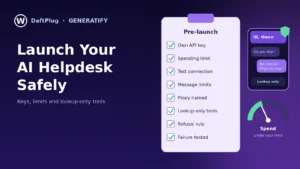
| Key rotation planned for handover | Your offboarding notes |
The same membership covers Progressify, Lightify, Crownify and Snapshotify on every site in the plan, so one license key serves the whole roster.